

1
Add the step
Place it after the steps that prepare the data you want to watch. In the step list, choose Send a notification under Alphacast AI.
2
Describe the notification
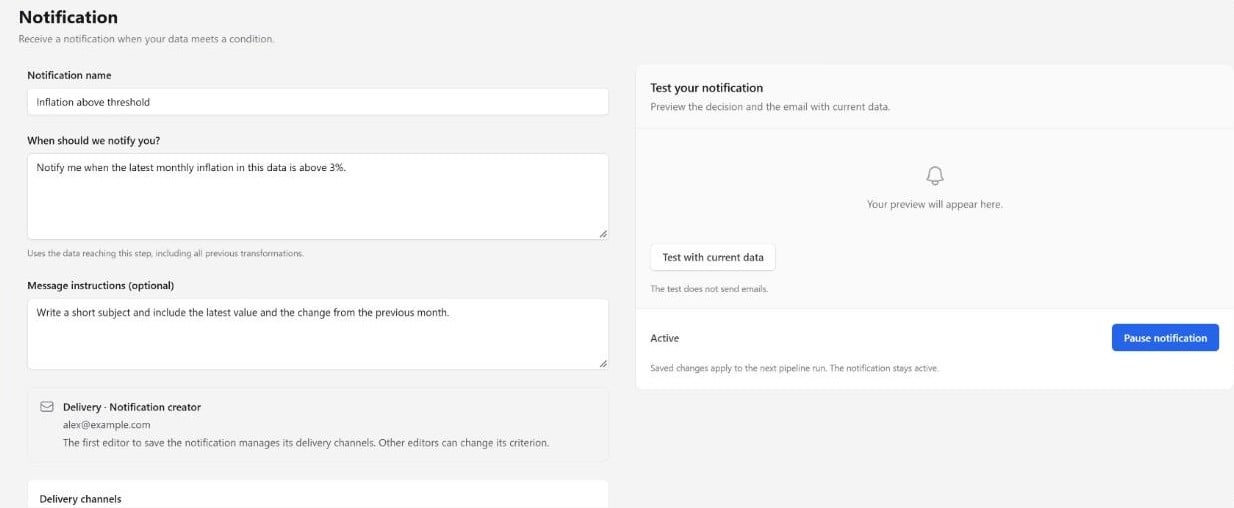
Fill in Notification name and When should we notify you? Optionally, add Message instructions (optional).
3
Save
Press Save. Saving a new, valid notification subscribes you.
4
Test it
Click Test with current data. The test doesn’t send anything.
Configuration
Example condition: “Notify me when the latest monthly inflation exceeds 3%.”
What gets evaluated
- Only the data that reaches the step, including all earlier transformations. It doesn’t compare with a snapshot from a previous run.
- If your condition is about a change over time, keep the earlier dates in the data.
- The input must be small enough to evaluate. The limit is 100,000 characters, including the condition and data descriptions. If the data is too large, select columns or filter dates first.
Test the notification
Test with current data needs a saved step with at least one step before it. It prepares the input from the previous step and shows one of these results, with a reason:- A notification would be sent, with the subject and body.
- No notification would be sent.
- More information is needed, with what is missing.
Who receives it
The first editor who saves a valid notification becomes its only recipient. Email goes to that user’s registered address. Other editors can change the condition, but they can’t change the recipient, delivery channels or paused state. You can’t add other recipients. To receive it, you must keep edit access to the pipeline, access to its source data, membership in the Workspace where you subscribed, and a plan that allows data downloads. For delivery channels, pausing and troubleshooting, see Get pipeline alerts.Next steps
Get pipeline alerts
Set up an alert from start to finish and manage it.
Filter Dates
Keep only the period your condition needs.