

Before you start
- To create or change pipelines you need a plan that can create content, and edit access to the repository.
- Pipeline tools are part of Alphacast AI. Custom agents don’t have them.
Create a pipeline from a chat
1
Describe the result
In Alphacast AI, say what data you need, how to transform it and what you want at the end. For example: “Create a pipeline with monthly US CPI from FRED, calculate the year-over-year change, and chart it.”
2
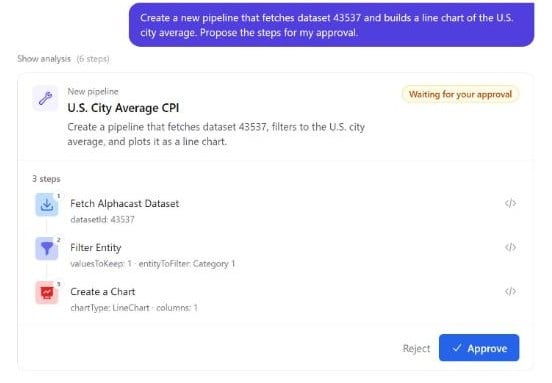
Review the approval card
The card shows why the change is proposed and the steps involved. You can open the configuration of each proposed step. Its status is Waiting for your approval.
3
Approve or reject
Click Approve to make the change, or Reject to cancel it. Nothing changes until you approve.
4
Check the pipeline
Click Open pipeline. Creating a pipeline with steps starts a run.
Save a chat result as a pipeline
If a chat already produced the chart, table or data you want, save it. Alphacast creates a pipeline that repeats the steps behind the result.
The menu next to the button can also offer Publish the data as a dataset and Download data (CSV). A published dataset appears when the first run finishes. Some results can’t be saved, for example view-only data.
Change a pipeline in the editor
1
Open the assistant
In the pipeline editor, click Build with AI. If it is unavailable, save your pending changes first.
2
Ask
For example: “Keep only data since 2015” or “Explain what step 3 does.”
3
Approve the change
Review the approval card and click Approve. The editor reloads the pipeline.
Fix a step error
When a step has an error, click Fix with AI. The assistant opens with the error. Review the proposed edit before you approve it, then check the new run.Write better requests
- Name the source, country, variable and frequency.
- Give the exact dataset or series ID if you know it.
- Say what the output should be: a dataset, a chart, a table or an alert.
- Ask for one change at a time when you edit a pipeline.
Limits
- AI can choose the wrong series or transformation. Check the data with Preview data before you use it.
- You can’t set a run schedule or choose notification recipients through the chat.
- To build pipelines from another AI assistant, use the MCP pipeline tools.
Next steps
Run a pipeline
Check results, fix failures and undo changes.
Pipeline steps
See everything a pipeline can do.