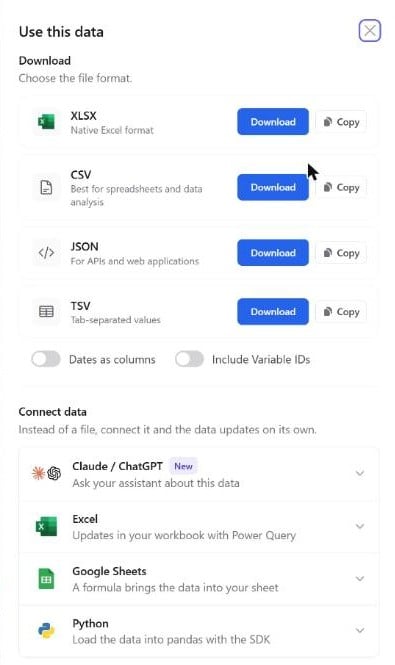
Choose a connection
Claude and ChatGPT
Ask your assistant about Alphacast data.
Excel
Load data with a link and refresh your workbook.
Google Sheets
Bring data into a sheet with a formula.
Python
Load data into pandas with the SDK.
MCP
Connect coding agents and other MCP clients.
REST API
Integrate Alphacast with your own code.
Webhooks
Notify a URL when data changes or an alert triggers.
Embeds
Show charts, dashboards and AI Views on a web page.
Connect from a dataset page
The fastest way to start is from the data itself.1
Open the dataset
Find a dataset. Apply any filters you want to keep.
2
Open the download panel
Click Download. The panel is called Use this data.
3
Pick a destination
Under Connect data, choose Claude / ChatGPT, Excel, Google Sheets or Python. Copy what the panel gives you.