

Ask a question
1
Open the assistant
Click Alphacast AI in the left menu. You can also ask from Home, or click Analyze with AI on a dataset page.
2
Choose the data scope
A new chat in Alphacast AI starts with All Alphacast.
3
Write your question
Say what you want: the indicator, the country or entity, the period, the calculation, and the format. For example:
Compare annual inflation in Chile and Peru since 2019 in a line chart.4
Refine it
Continue in the same chat: change the period, add a series, or ask for another format.
Choose what the assistant can search
The narrower scopes don’t use external providers or tickers. A chat started from a dataset page focuses on that dataset.
What the assistant can read depends on your plan and permissions. Finding a dataset doesn’t guarantee that you have access to its data.
Check the answer
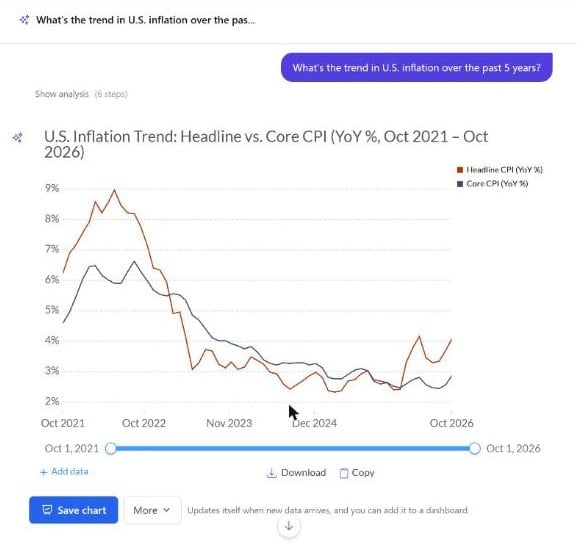
AI answers can be wrong. Before you rely on one:- Click Show analysis to see the steps the assistant took.
- When an answer shows a source count, click it to see what the assistant used, such as datasets, series, tickers, or external providers.
- When a result offers View Data or Show Code, use them to inspect it.
- Check dates, units, frequency, and entities.
Save results
For charts and tables, More can also offer Publish the data as a dataset. When available, Download data (CSV) downloads the data.
You choose a repository when you save. Alphacast creates a pipeline that repeats the steps behind the result, so it can update with new data. A new dataset published this way appears when the pipeline’s first run finishes. Use See the steps or Open pipeline to review it.
Saving requires a plan that can create content. Free and Explorer can’t save results. Results built on data that you can view but not download can’t be saved, published, or downloaded.
Work with pipelines from the chat
Alphacast AI can read your pipelines. If you can create content in your workspace, it can also create and change them. Review each change, then click Approve or Reject. See build pipelines with AI.Provider API keys
If an external provider needs a key, the chat can ask for it. Paste it, click Save Key, and retry your request. See provider API keys.Your conversations
Your chats are listed under Conversations, next to the chat. Click New chat to start another.Limits
Each plan sets how much you can use the AI and which data it can access. To use Alphacast data in Claude, ChatGPT, or another assistant, see AI assistants.Next steps
AI Views
Create mini dashboards from a prompt.
Agents
Give your team an assistant with a defined scope.