

iframe.
Embedding charts, dashboards, and agents is available on the Workspace plan. You may see the Embed option on other plans, but you need Workspace to use embeds on your site. See pricing.
Get the embed code
1
Open the Share window
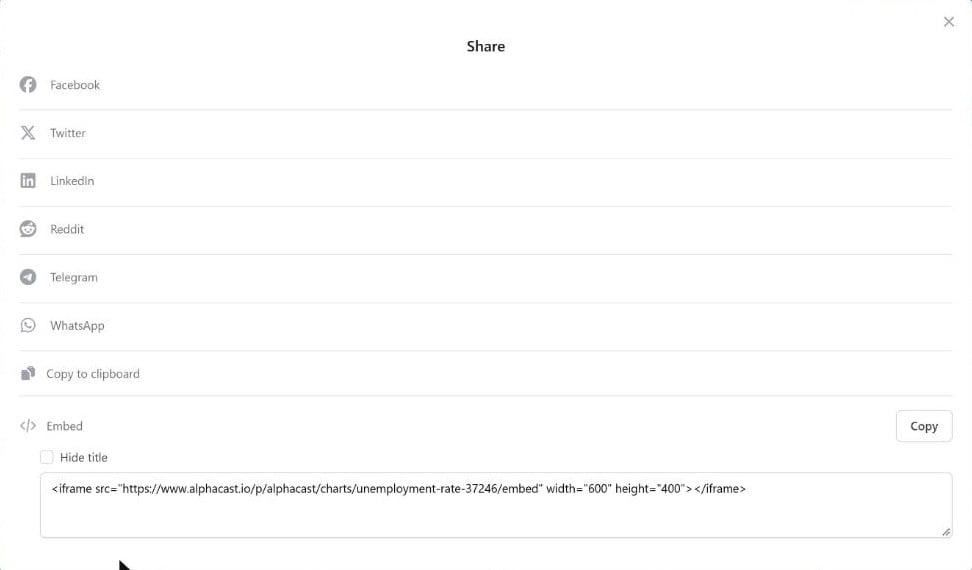
Open the menu on a chart card in a repository’s Views tab, on an AI View or on a dashboard. Click Share.
2
Choose Embed
Click Embed. Check Hide title if you want to request the content without its title.
3
Copy the code
Click Copy, then paste the code into your page.
Adjust the size
Changewidth and height to fit your page. For a flexible width, use a style:
Control who can see it
An embed does not grant access. Repository permissions still apply. For content that every visitor should see without signing in, keep it in a public repository. This also applies to each item inside an embedded dashboard. Test your page in a private browser window to see what a visitor sees.Keep embeds working
- An embed loads the content from Alphacast. You do not need to replace the code after the data updates, although a change can take a while to appear.
- If you delete the content or make it private, visitors may stop seeing it.
- Some website builders do not allow
iframeelements. Check your site’s settings.
Next steps
Charts
Create the charts to embed.
Dashboards
Build a page with several items.