

POST with a JSON body to your URL when:
- A dataset you follow has new, revised or deleted data.
- One of your pipeline notifications triggers.
Requirements
- A public HTTPS URL on port 443, without a username, password or
#fragment. - To use a dataset as a source, follow it first.
- To use a pipeline notification, you must be its subscriber and keep access to its pipeline.
Add a webhook
1
Start
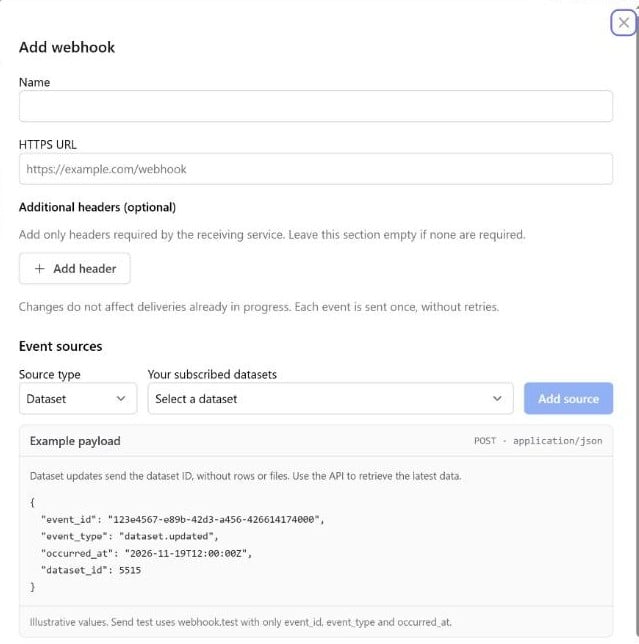
Go to Settings > Webhooks and click Add webhook.
2
Set the destination
Enter a Name and the HTTPS URL. Add Additional headers only if your receiving service needs them.
3
Add sources
Under Event sources, choose a Source type (Dataset or Pipeline notification), select an item and click Add source.
4
Save
Click Save.
5
Test it
Open the webhook and click Send test. Check the result in Delivery history. Save your changes before you test.
Event format
Every event hasevent_id, event_type and occurred_at (UTC). occurred_at is when Alphacast published the update or evaluated the alert. It is not the date of an observation. The values below are examples.
- Dataset update
- Pipeline notification
- Test
Authenticate requests
Alphacast does not add your API key to webhook requests. To let your service check who is calling, set a secret in an additional header and verify it in your receiver. Keep the URL private too. Saved URLs and header values are not shown again. When you edit a webhook, leave a value blank to keep it. Remove a header row to delete that header.Delivery behavior
- Each event is sent once. There are no retries and no resend button.
- A
2xxresponse means that your service received the event. It does not mean that your workflow finished. - Other responses, redirects, timeouts and connection errors count as failed. Redirects are not followed.
- Respond quickly. An attempt has a time limit of 10 seconds at most. Do long work after you respond.
- Delivery is best effort. Event order is not guaranteed, and an event can be missed. If you cannot miss a change, also check the data directly.