

Connect Claude
1
Open Connectors
In Claude, open Customize > Connectors. In some versions, it is under Settings > Connectors.
2
Add Alphacast
Click +, then Add custom connector. Enter the name
Alphacast and the URL above. Click Add.3
Sign in
Click Connect. Sign in with your Alphacast account and authorize access in your browser.
4
Test it
Open a new chat and send: “List my Alphacast repositories.” Check that Claude calls an Alphacast tool.
Connect ChatGPT
1
Add the connector
In ChatGPT’s connector settings, add a custom connector with the URL above. Where this option is, and whether you can use it, depend on your ChatGPT plan and settings.
2
Sign in
Sign in with your Alphacast account and authorize access.
3
Test it
Start a chat with the connector enabled and ask about a dataset. Check that ChatGPT calls Alphacast.
Ask about a specific dataset
On a dataset page, click Download. Under Connect data, open Claude / ChatGPT. Copy the MCP URL, then copy the suggested question. It names the dataset by its ID, like this: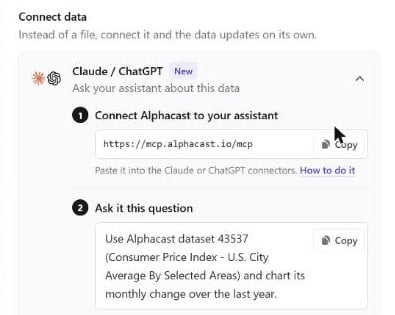
Get better answers
- Name the dataset ID when you know it.
- State the countries, columns and date range you need.
- Ask the assistant to show the source dataset and the latest date it used.
- Check important figures in Alphacast.