

Before you start
You need to be signed in. You get the full data if you have full download access to the dataset. Otherwise, the panel tells you that you are downloading a preview. See pricing.Load a dataset
1
Open the dataset
Apply any filters for columns, entities or dates. The formula keeps them.
2
Copy the formula
Click Download. Under Connect data, open Google Sheets and copy the formula.
3
Paste it
Paste the formula in cell
A1 of an empty sheet. If Google asks you to allow access to external data, review the request.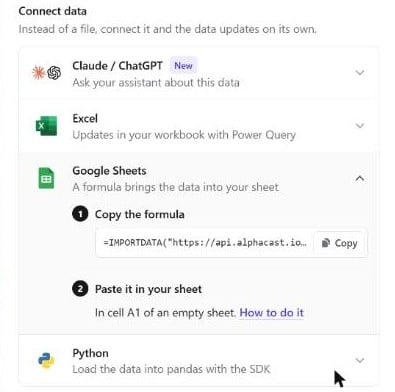
How updates work
Google Sheets decides when to fetch the link again. A new value in Alphacast may not appear right away.Adjust what you load
Dates as columns and Include Variable IDs change the data that the formula returns. Set them before you copy it. If you change filters or options, copy the new formula.If it does not work
- Error in the cell: make sure that you copied the whole formula and that the cells below and to the right are empty.
- Only part of the data: check your download access and usage in Settings, under Membership.
- Stopped working after a key reset: copy a new formula. See your API key.
- Large dataset: Google Sheets has its own size limits. Filter the data to load less.