

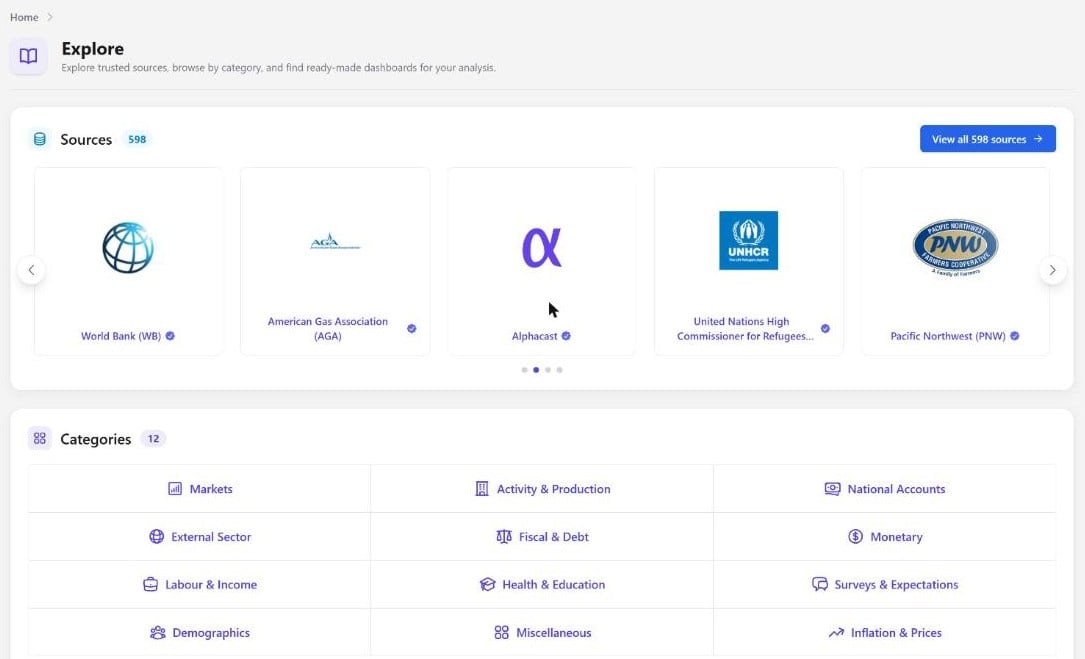
What is on the Explore page
- Sources: a carousel of data sources. Use View all to see the full list.
- Categories: topics you can open to find related subcategories, sources, publications, and dashboards.
- Dashboards: ready-made dashboards. Cloning them depends on your plan. See dashboards.
Browse by source
1
Open the source list
In Sources, use View all.
2
Narrow it down
Filter by Country or Category. Click Clear all to start over.
3
Open a publication
Open a source, then choose one of its Publications.
4
Pick a dataset
Search or sort the publication’s Datasets, then open one. When available, Original source links to where the data comes from.
Filter publications by catalog
Catalog data is grouped into the Starter, Professional, and Business catalogs. A badge on a dataset shows its catalog. Click it to see publications in that catalog. Where catalog filters appear, choose one catalog or All catalogs. When the option is shown, select Downloadable with my plan to see only publications you can download. Finding a dataset doesn’t mean you can download it. What you can view, ask the AI about, and download depends on your plan.Search
1
Open search
Press
Ctrl+K (⌘K on Mac) or click the search box.2
Type what you need
Include the indicator and the country or entity, such as
unemployment Chile.3
Open a result or see them all
Pick a result, or click View all results. On the results page, you can filter by result type and category, or use Advanced Search.
When the catalog doesn’t have it
The API Explorer lets you preview series directly from external data providers. You can also upload your own data if your plan allows it.Next steps
Dataset pages
Check coverage, filter, chart, and download.
API Explorer
Query external providers.
Clips
Keep useful datasets at hand.
Alphacast AI
Find and analyze data by asking.