

Switch workspaces
Open the workspace menu, which shows the current workspace name, and select another one. Your own account is labeled Personal Account. Teams are labeled Workspace.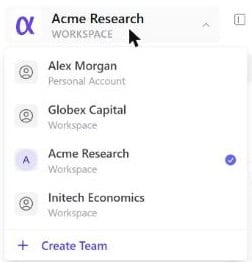
- Create content or choose a working repository.
- Manage pipeline notifications or webhooks.
- Use a connected AI assistant, which works with your active workspace.
Find repositories
Your workspace lists its own repositories. Repositories from other accounts appear in separate sections:- Shared with me: shared directly with you.
- Shared with my team: shared with the team workspace you are in.
Team workspaces
A team workspace lets people work in shared repositories. Collaboration features and seats depend on your plan. Our team sets up team workspaces. To request one, write to hello@alphacast.io. For plan features, see pricing.Manage team members
Team owners and admins can open Workspace settings from the user menu. It has three sections: General, Team and permissions and Membership.1
Open the member settings
Go to Workspace settings > Team and permissions.
2
Find the person
Under Add members, search for an existing user or invite someone by email.
3
Choose a role
Select Member or Admin under Permission. Add the user with Add member, or send the email invitation.
Team profile and owner actions
In General, you can edit the team description and images. The Danger Zone has the actions to transfer workspace ownership or delete the workspace.Next steps
Share a repository
Set permissions for each repository.
Pricing
Compare seats and team features.