

Follow a dataset
Open the dataset and choose Subscribe in its actions. After a download, you can also click Follow this dataset. To stop, click Unsubscribe. The Subscribe action on the dataset page appears when you have full download access to that dataset and it is not deprecated. See pricing.Create a pipeline alert
Add a Notification step to a pipeline and describe the condition in plain language. The alert is evaluated when the pipeline runs. The person who first saves the step is the subscriber, and email goes to that person’s address. To check data regularly, the pipeline must run. See pipeline alerts.Check the bell
Click the bell icon to see recent dataset updates and pipeline alerts. Click an item to open it. Click the gear to open the notification settings.Manage your notifications
Go to Settings > Notifications.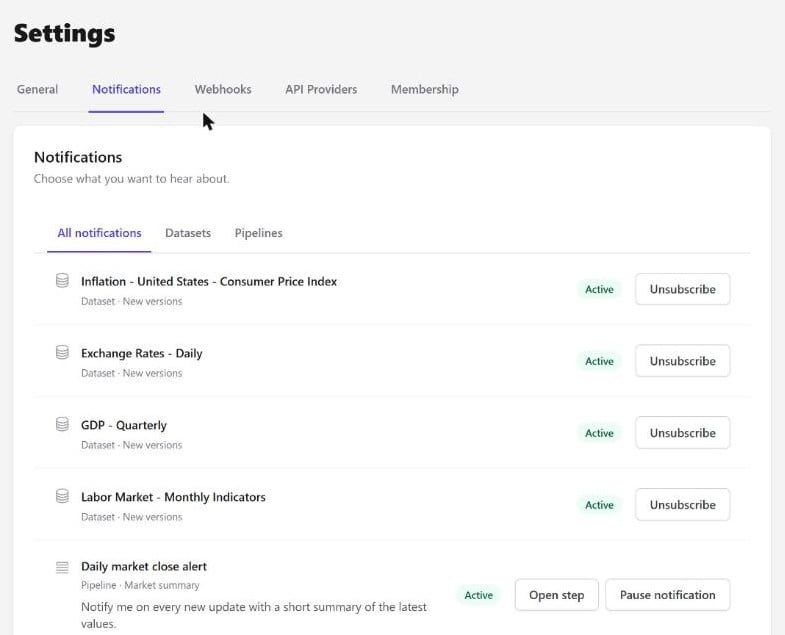
- Datasets: click Unsubscribe.
- Pipelines: click Pause notification or Resume notification. Click Open step to change the condition. A notification can be Active, Paused or Cancelled.
Send events to another system
You can send dataset updates and pipeline notifications to a URL. See Webhooks.Next steps
Pipeline alerts
Build alerts from your own conditions.
Webhooks
Trigger your own workflows.