

Clip something
Some pipeline outputs also have a clip button.
Open your clips
1
Open the panel
Click the paperclip icon in the header.
2
Choose a tab
Clips are grouped in tabs such as Views, Datasets, Decks, and AI Summaries. Some tabs appear only when they have content. In Views, you can filter by AI Views, Charts, or Tables when you have them.
3
Find a clip
Search by title, or sort by Latest clipped, First clipped, or title. Click a clip to open it.
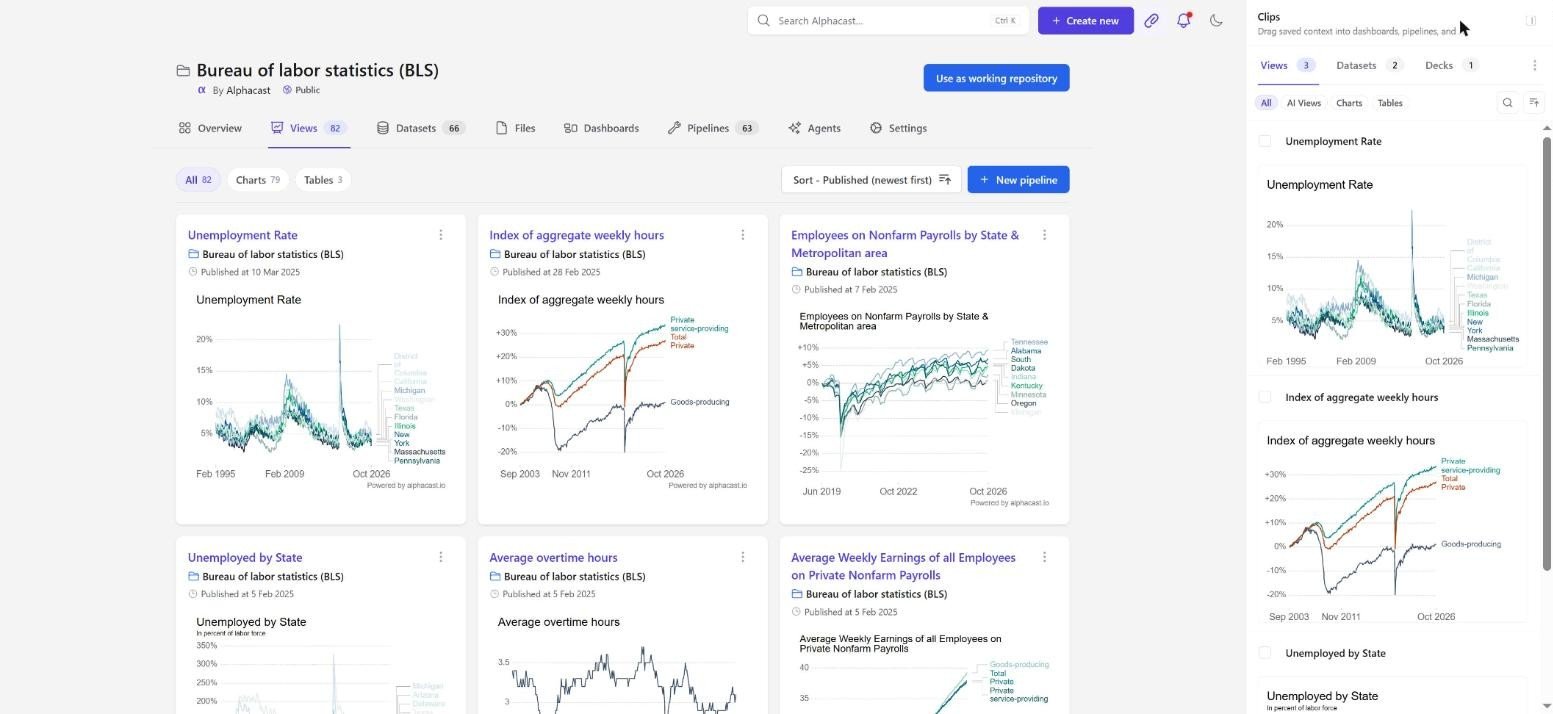
Reuse clips
- Dashboards: drag charts, tables, or AI Views into a dashboard you are editing. See dashboards.
- Pipelines: drag a dataset onto a dataset field in a step. See pipelines.
- Agents: when an agent uses Specific Datasets, drag datasets from your clips into the list. See agents.
- Alphacast AI: when you have clipped datasets, choose My Clipped Datasets as the data scope to focus a new chat on them. See data scope.
Remove clips
Open a clip’s menu and click Remove clip. To remove several, select them and click Remove. This removes them from your clips. It doesn’t delete the original items.Next steps
Build a dashboard
Arrange your views on one page.
Ask about your clips
Use your shortlist as the assistant’s data.