

What you can see and download depends on your plan. On Free and Explorer you can’t create most content, such as saved charts, pipelines, datasets, or dashboards. Saving requires Professional or higher. See pricing.
Find a dataset
1
Search
Press
Ctrl+K (⌘K on Mac) or click the search box at the top. Type a topic and a country, such as inflation Mexico. You can also open Explore in the left menu and browse by source or category.2
Open the dataset
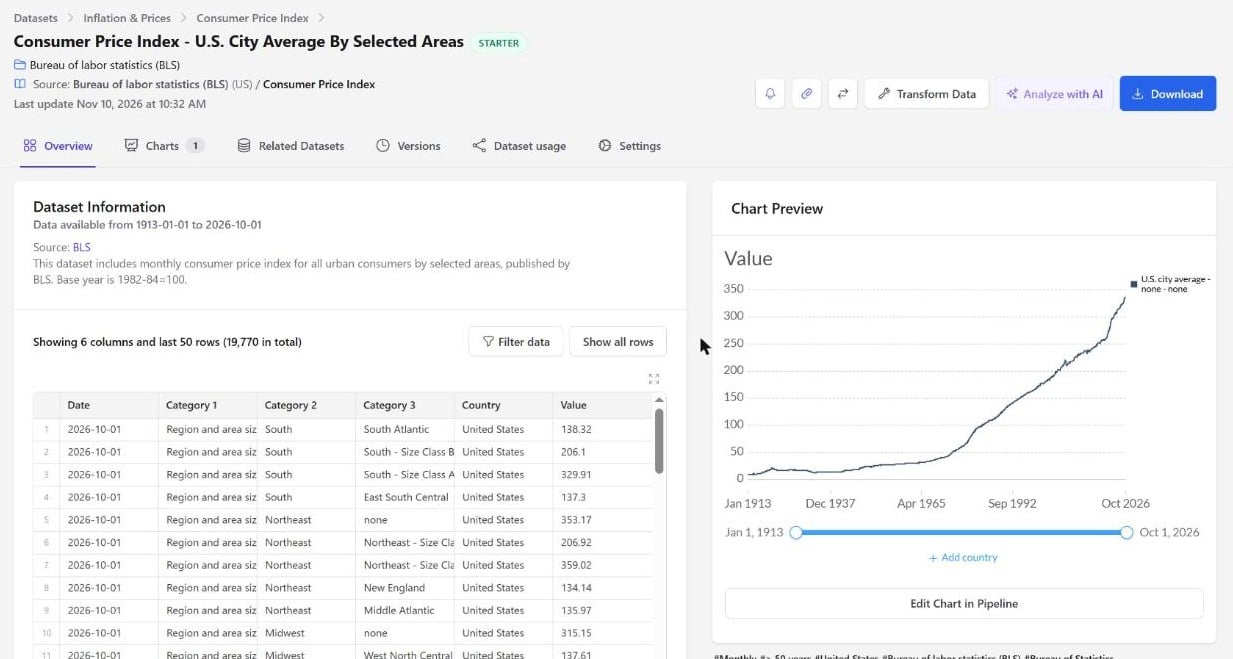
Pick a result under Datasets. The dataset page shows information about the data, a data table, and a chart preview when one is available.
3
Check that it fits
Look at the dates under Dataset Information and the Last update line. Use Filter data to keep only the dates, entities, and variables you need.
Ask Alphacast AI
1
Open the assistant on the dataset
Click Analyze with AI (Ask AI on small screens). The chat is focused on this dataset.
2
Ask a question
Type your question, for example
Chart the year-over-year change over the last five years. You can also pick Understand, Transform, Visualize, or Compare to start from a suggested prompt, then edit it before you send it.3
Check the answer
Open Show analysis to see the steps the assistant took. Check the dates, units, and series it used, and ask follow-up questions to correct anything.
Save the result
When the answer includes a chart, a table, or data, buttons for saving it can appear with the result.1
Choose what to save
Click Save chart, Save table, or Save as dataset. For an AI View, click Save view.
2
Choose a repository
Pick where to create it. A repository is the folder that holds your work and controls who can access it.
3
Review it
Alphacast creates a pipeline. It keeps the steps the AI followed and runs them again with new data. Use See the steps or Open pipeline to review it.
Subscribe to new data
On the dataset page, click Subscribe to get notified when a new version is available. The button appears when you have full access to the dataset’s data and the dataset isn’t deprecated. After you download a file, you can also click Follow this dataset in the same panel. See notifications.Use this data
On the dataset page, click Download. The Use this data panel opens. If you only have access to a sample of the dataset, you get a preview download instead.- Download a file as XLSX, CSV, JSON, or TSV. XLSX isn’t offered when the data is too large for a spreadsheet.
- Under Connect data, follow the steps for Claude / ChatGPT, Excel, Google Sheets, or Python. A connection can bring in new data without a manual download.
Next steps
Find your way around
Menus, workspaces, repositories, and the header buttons.
Connect your tools
AI assistants, spreadsheets, Python, and more.
Dataset pages
Filters, charts, versions, and downloads.
Build a pipeline
Transform data once and keep the result current.