

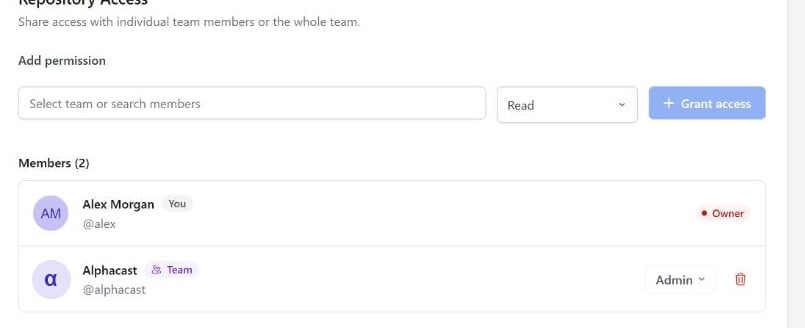
Add people to a repository
You need Admin access.1
Open Repository Access
Open the repository, go to Settings and find Repository Access.
2
Find the account
Under Add permission, search by email address or username. In a team repository, you can select the team or search its members.
3
Choose a permission
Select Read, Clone, Write or Admin. Some accounts can only receive some of these levels. Check Notify by email if you want Alphacast to send an email.
4
Grant access
Click Grant access.
Invite someone who has no account
These options are available in personal repositories.- By email: search for the email address. If no account uses it, send an invitation with the permission you selected. The person must accept it with an account for the invited email address.
- By link: under Generate an invitation link, click Generate, then Copy. The link grants Read permission to anyone who uses it. It is valid for 7 days.
Change or remove access
In the Members list, change a person’s permission or click the remove icon, then confirm. Changes apply right away. A removed member loses the access that this membership gave.Find content shared with you
Repositories shared with you appear under Shared with me. Repositories shared with your team appear under Shared with my team. A team repository can also be shared with other teams of the same organization, if your organization is set up that way. Those teams can get Read or Clone access.Share a link to a chart or dashboard
Open the menu on a chart, AI View or dashboard and click Share. You can post the link to a social network or choose Copy to clipboard. A link does not grant access. Content in a private repository stays visible only to people with access to it. To show content on a website, see Embeds.Public dashboards with private content
A public dashboard can include content from private repositories, but readers without access will not see it. Alphacast marks those items in the editor and asks you to confirm before saving. To fix this, make their repositories public or remove the items.Next steps
Build a dashboard
Put charts and text on one page.
Team workspaces
Manage the people in your team.