

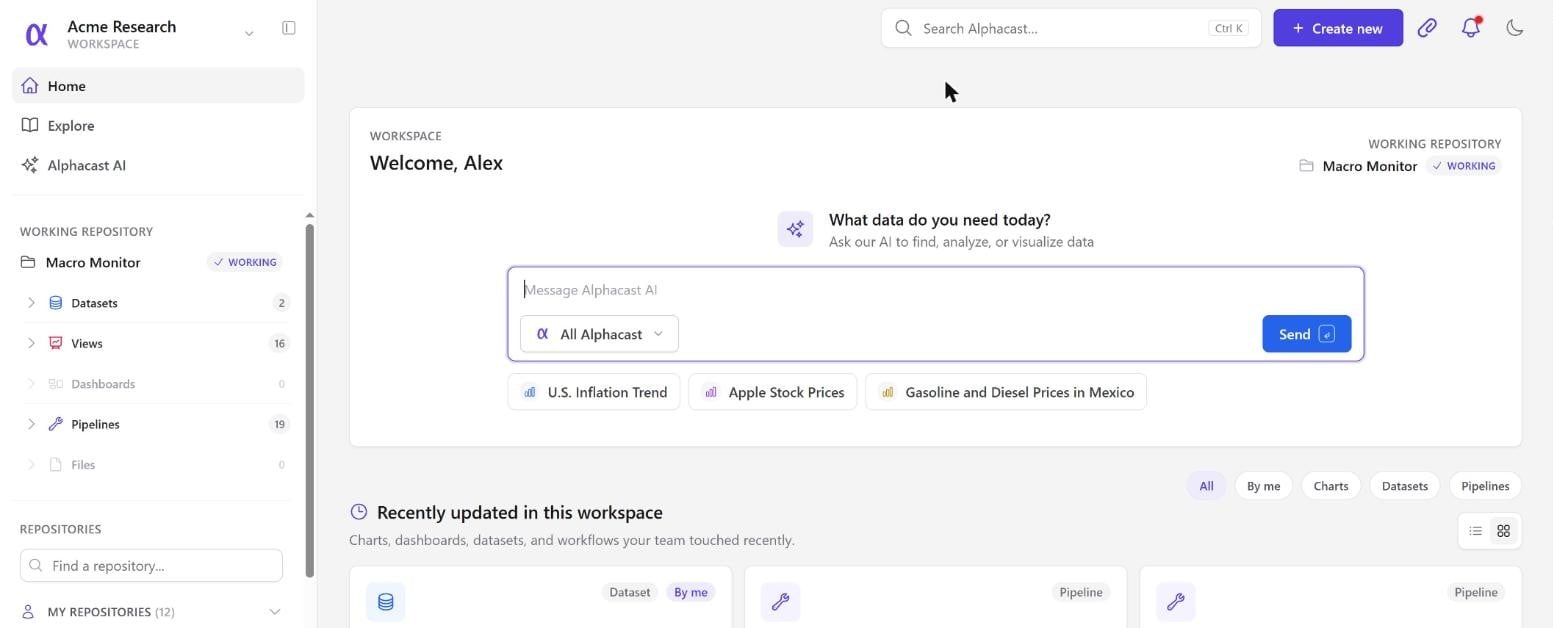
Switch workspaces
The name at the top of the left menu is your current workspace: your Personal Account or a team’s Workspace. Each one has its own repositories and data. Click it to switch, or click Create Team. See workspaces.Main menu
In the recent work list on Home, you can filter by type or by By me, and switch between Items and Cards.
Repositories
The left menu also shows your repositories. Use Find a repository… to search them. Your Working repository is where new content goes by default. The menu groups its contents, such as datasets, views, dashboards, pipelines, and files. To change it, click Use next to another repository you can write to. Recent Work lists items you can reopen quickly. When you save a result from the AI or transform a dataset, Alphacast can ask where to create it. Choosing a repository there doesn’t change your working repository.Search
Click the search box or pressCtrl+K (⌘K on Mac). Switch between the All, Finance, Data, and Dashboards tabs. After you type, you can:
- Open a result directly.
- Click View all results for the full results page.
- Click All Alphacast to include all the repositories you have permission to see.
- Click Ask Alphacast AI to search with the assistant.
Create new
Click Create new to add content, such as a Dataset, File, Chart, Dashboard, Pipeline, or Repository. The menu shows your working repository, and Change lets you pick another. If you don’t have one selected, it asks you to choose one first. On Free and Explorer, you can’t create content from this menu. The Repository option stays available. See pricing.Clips
The paperclip icon opens Clips, where you keep datasets and views at hand and drag them into your work. See Clips.Notifications
The bell icon opens your Notifications. The gear icon in that list opens Notification settings. See notifications.Account menu
Open your account menu at the bottom of the left menu to reach:- Learn: these docs.
- Settings: your preferences, with tabs such as General, Notifications, Webhooks, API Providers, and Membership. In a team workspace, you see Personal settings, and Workspace settings if you can manage the team.
- Upgrade, on the free plan.
- Sign out.
Next steps
Your first 10 minutes
Go from a search to data in your own tools.
Explore the catalog
Browse 9,000+ curated datasets from 600+ sources.